2025 Squarespace Update: How to Hide a Block on Mobile and Desktop (No CSS required!)

Pin to save for later
If you have ever wanted to adjust your Squarespace* layout so certain sections only appear on desktop or mobile, you will love this new feature. Squarespace now allows you to hide any block on mobile or desktop directly inside the editor, with no custom code or CSS needed.
Whether you are optimizing your design for mobile visitors or simplifying your layout for smaller screens, this new visibility option helps you create a better viewing experience
Why Hiding Blocks on Mobile Matters
Mobile design plays a major role in how users experience your website. In 2025, more than 70% of visitors view Squarespace sites on mobile devices.
Tailoring your layout for smaller screens helps you:
Improve page load speed by removing unnecessary elements
Creates a visually balanced design on every device
Helps highlight your most important content
Step-by-Step Guide:
How to Hide a Block on Desktop & Mobile in Squarespace 7.1 with new Layers Feature
The Steps:
1. Enter Edit Mode on your page
2. Find the section that contains the block you want to hide
3. Switch to the device view you want to hide the element from (for example, if you want to hide it on mobile, select Mobile view)
4. Open the Layers panel by clicking Layers in the top-left corner of the section

Where to find Layers panel on desktop
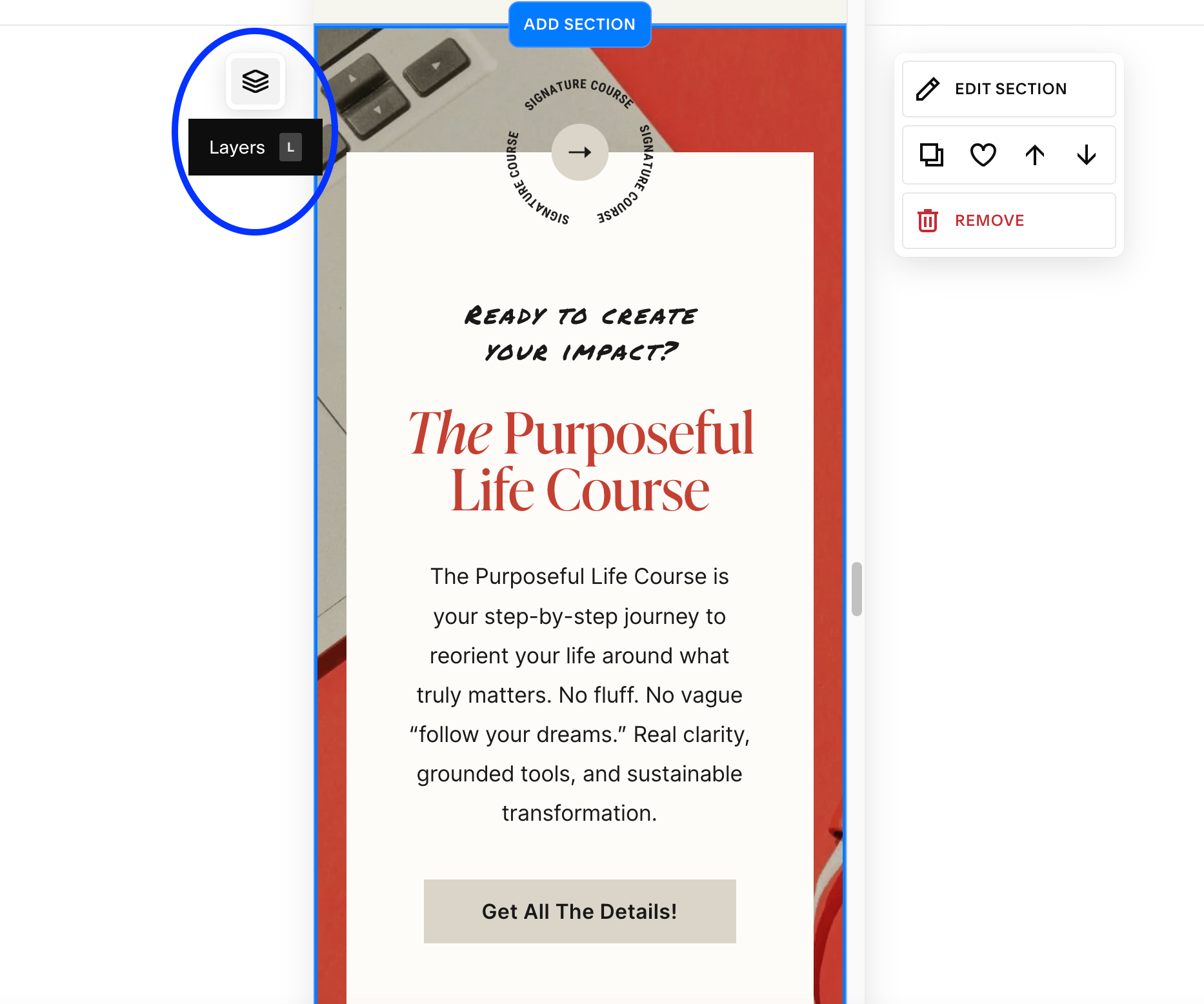
Where to find Layers panel on mobile
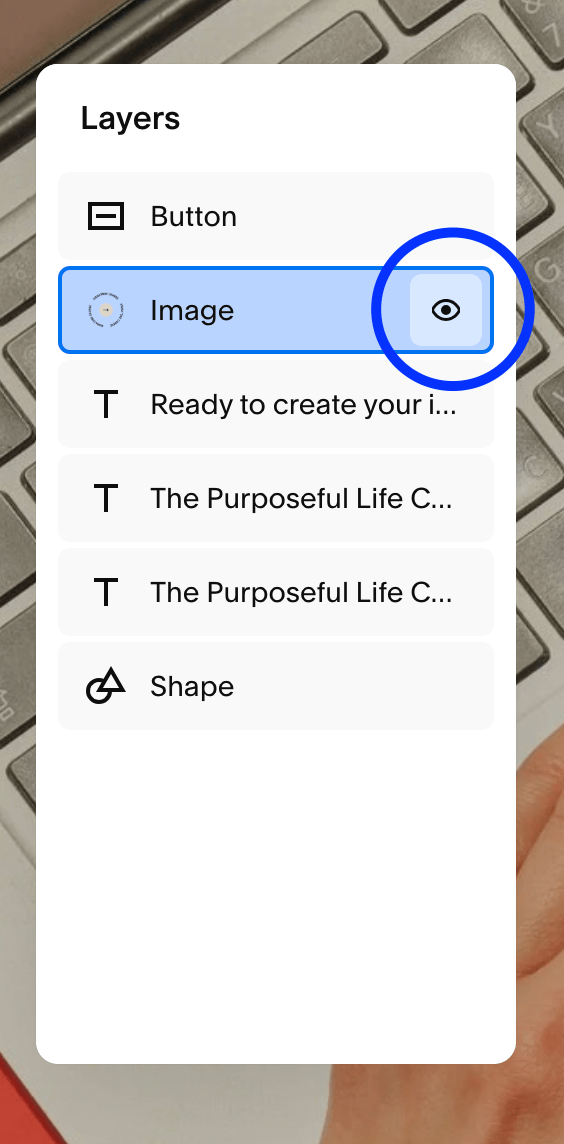
5. Locate the block you want to hide and click the eye icon next to it to toggle visibility
6. Save & test!
Thanks for reading!
Did this tutorial help? Consider buying me a coffee as thanks! 🥰
Use discount code STYLEDSQUARE10 to save 10% off your Squarespace Subscription!
* Disclaimer: This post contains affiliate links. If you purchase through our links, we may earn a small commission at no extra cost to you. We only ever recommend tools we genuinely use and love.