2025 Squarespace Update: How to Upload Custom Fonts for your Brand in Squarespace (No CSS required!)

Pin to save for later
Squarespace just made it easier than ever to upload your brand fonts to your website: you can now upload and use custom fonts in Squarespace without adding any CSS or custom code.
Whether your designer provided you with a signature font or you downloaded a font from Google Fonts, you can now upload it directly in Squarespace 7.1 with just a few clicks.
Step-by-Step Guide:
How to Upload Custom Fonts in Squarespace 7.1
STEP 01:
Prepare your font files
Before uploading, make sure you have the correct file types ready. Squarespace supports the following font formats:
.TTF (TrueType Font)
.OTF (OpenType Font)
.WOFF (Web Open Font Format)
STEP 02:
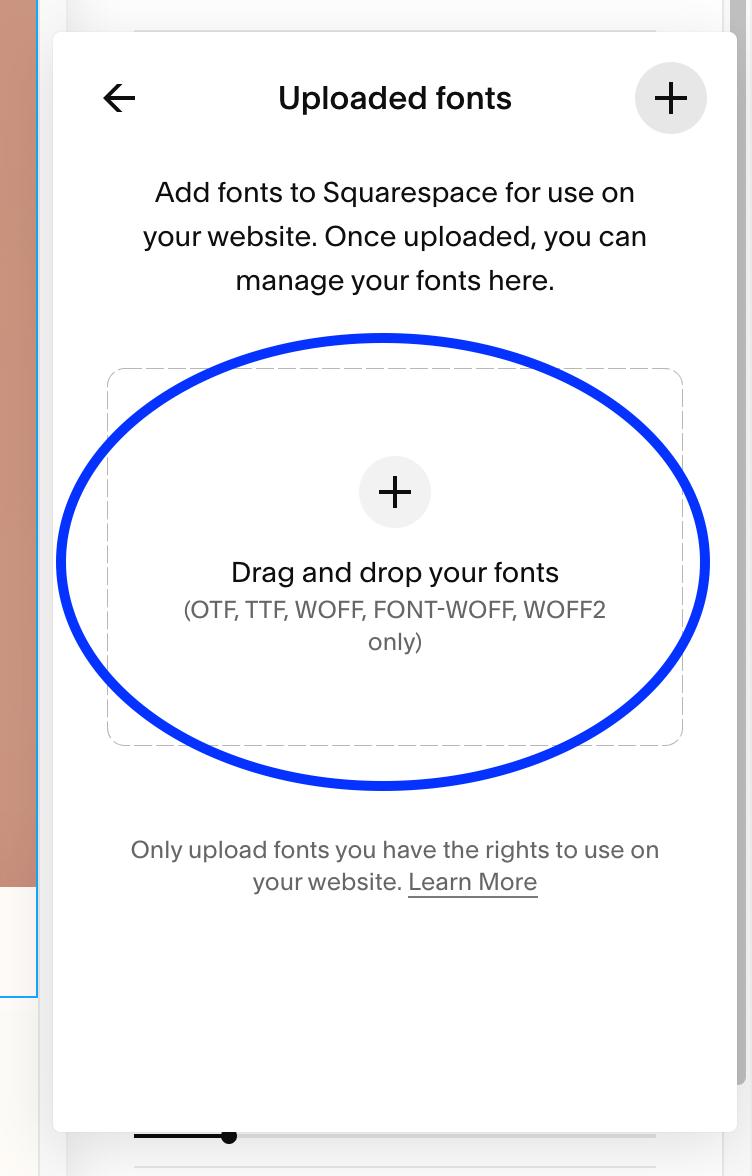
Upload your font in the Font Manager
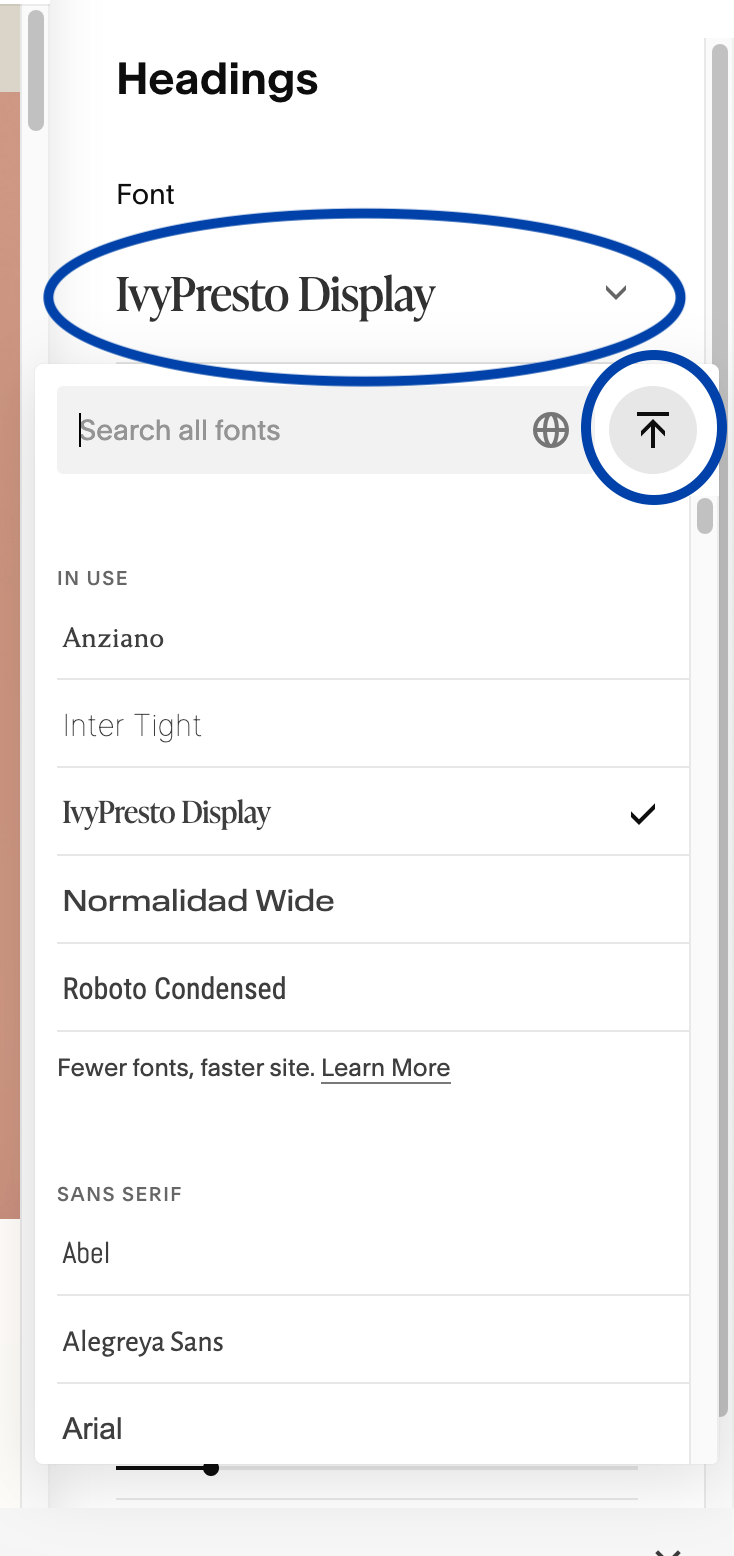
To upload your font, go to:
Site Styles
Fonts
Choose the style of type you want to update (eg. headings, paragraph, miscellaneous, etc.)
Click on the font > arrow (see screenshot below)
Upload your font file
Save!
All set!
Use discount code STYLEDSQUARE10 to save 10% off your Squarespace Subscription!
* Disclaimer: This post may contain affiliate links. We may earn a commission should you chose to sign up for Squarespace using our link. Affiliate links are a great way to show your support for our content with no additional cost to you!