2026 Squarespace Update: How to Use the Transforms Tool to Rotate Blocks, Change Opacity and More (No CSS Required!)
Pin to save for later
If you’ve ever wanted to rotate, reposition, or adjust the opacity of individual blocks in your Squarespace website, without writing a single line of code, this update is for you.
Squarespace’s new Transforms tool is changing how you customize your site, giving you more creative control directly within the Fluid Engine Editor.
So, what is the Squarespace Transforms tool?
It allows you to move, scale, rotate, and adjust the opacity of image and text blocks, redefining the rigid grid system Squarespace is known for. With this feature, you can create more dynamic, custom layouts in Squarespace 7.1 without a single line of custom CSS.
✅ Transforms can be applied to visual design-forward blocks, including:
Image blocks
Text blocks
Button blocks
Video blocks
Shape Blocks
❌ Transforms can NOT be applied to:
Gallery blocks
Summary blocks
Newsletter/form blocks
Instagram block
Code blocks
How to use the Transforms tool:
1. Enter Edit Mode on your page
2. Add a design block (see list above) to your section
3. Click the pen icon to edit the block
4. Go to Design tab and scroll down to locate Transforms
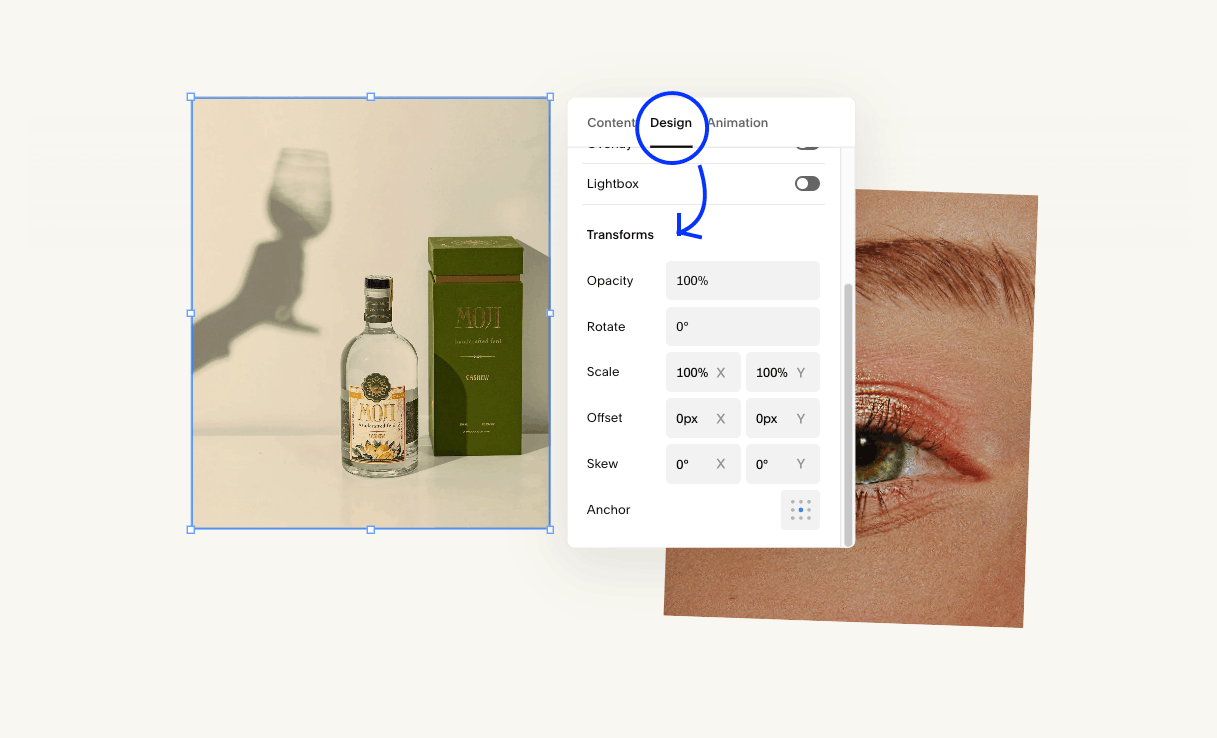
Where to find Transforms panel on desktop
The Breakdown
Opacity: Controls the transparency of a block, from fully visible to completely transparent
Rotate: Adjusts the angle of a block (perfect for tilted images or vertical text)
Scale: Lets you resize a block by adjusting its height and width proportionally
Offset: Gives you precise control over spacing and positioning, without being constrained by the grid
Skew: Allows you to slant or distort a block
Anchor: Defines the reference point for how the block moves and transforms within the layout
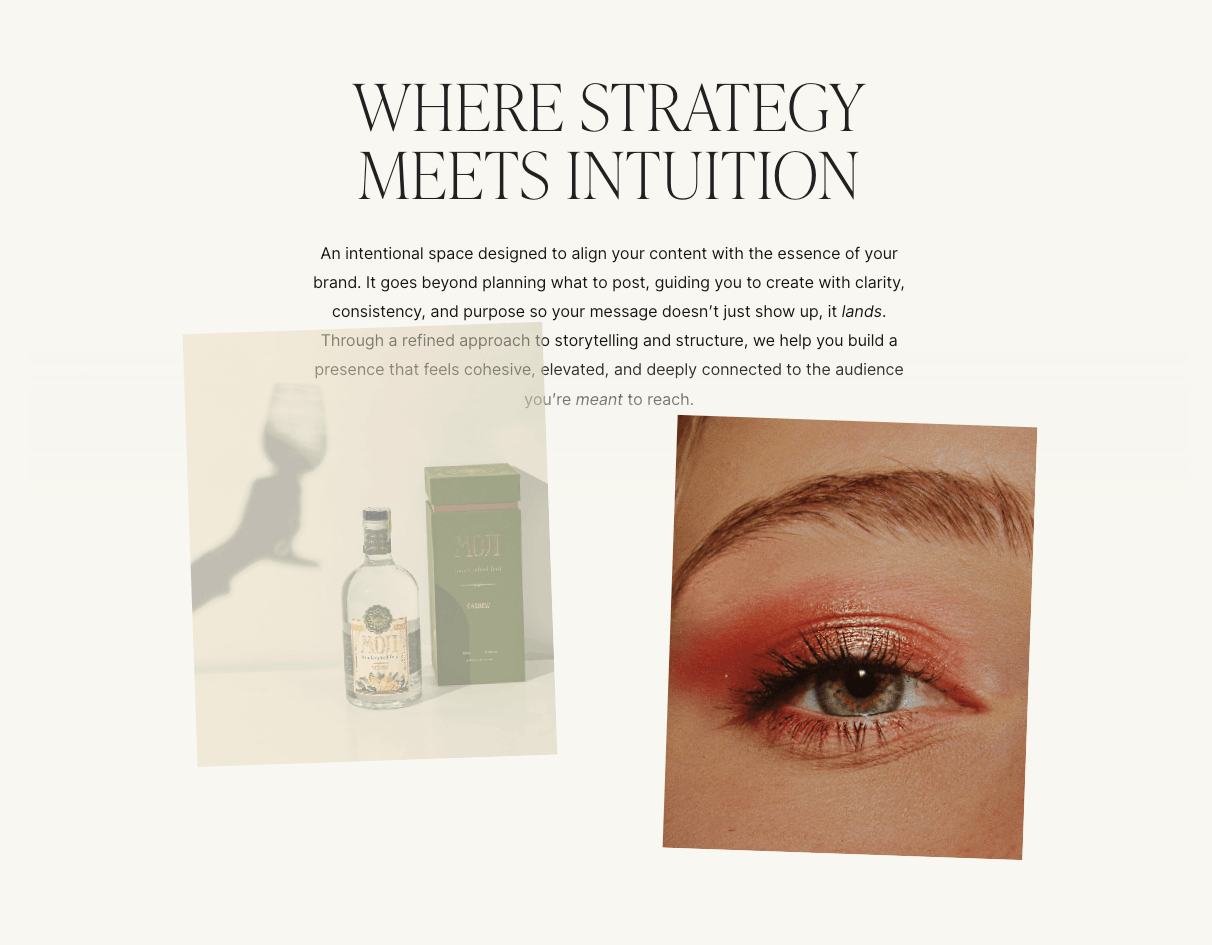
Transforms feature example
And that's it, custom design made easy!
The Squarespace Transforms tool is honestly one of the most exciting updates to land in the editor in a long time. The ability to move, scale, and rotate blocks freely means you finally have the creative control to create that polished, intentional design you have been dreaming of.
Ready to take your Squarespace site even further? Browse our premium Squarespace templates designed to work beautifully with all the latest updates!

Save this post to Pinterest so you can come back to it whenever you need it!
Thanks for reading!
Did this tutorial help? Consider buying me a coffee as thanks! 🥰
Use discount code STYLEDSQUARE10 to save 10% off your Squarespace Subscription!
* Disclaimer: This post contains affiliate links. If you purchase through our links, we may earn a small commission at no extra cost to you. We only ever recommend tools we genuinely use and love.