2026 Squarespace Update: How to Animate Specific Blocks (No CSS required!)

Pin to save for later
If you have ever wanted to add movement to specific elements on your Squarespace page (without applying the same animation to your entire site) you are going to love this update. Squarespace has officially introduced Block Animations.
Until now, if you wanted to animate an individual block on your Squarespace 7.1 site, you either had to rely on site-wide animation settings (which apply the same effect everywhere) or dig into custom CSS. Neither option gave you the kind of precise, block-by-block creative control that modern web design calls for. That all changes with this update.
So what exactly are Squarespace Block Animations?
Block Animations are new ways to add motion to your content for a richer, more dynamic scrolling experience. You can apply ready-to-go presets, or customize the animation for your needs. This means you can now make a specific image fade in on scroll, have a button bounce into view, or bring a shape block to life directly inside the editor, no code required.
Block Animations are currently available for:
Image blocks
Text blocks
Button blocks
Shape Blocks
Animation options include:
On Hover:
Triggers when a visitor moves their cursor over the block (perfect for linked images, buttons, or any element you want to feel interactive and clickable)
On Press: Animation plays when the block is clicked (great for adding a satisfying, responsive feel to buttons and calls-to-action)
Loop: The animation plays on repeat continuously (ideal for rotating text, decorative shape blocks, or anywhere you want to draw attention without the visitor needing to do anything)
On Scroll: The block animates as the visitor scrolls up and down the page (a great option for creating that sleek, modern scrolling experience)
On Appear: Animation triggers the moment the block enters the viewer's screen (perfect for revealing text, images, or sections in a way that feels polished and intentional)
Follow: The block subtly responds to the visitor's cursor movement as they navigate over the block
How to use the Animations tool:
Enter Edit Mode on your page
Click on the block you want to animate (see list above)
In the block settings panel, look for the Animations option
Select your preferred trigger (e.g. on scroll)
Choose from a preset animation or click into the custom settings to adjust by percentage, degree, or pixel
Adjust the speed and timing to your liking
Save and preview your page to see the animation in action
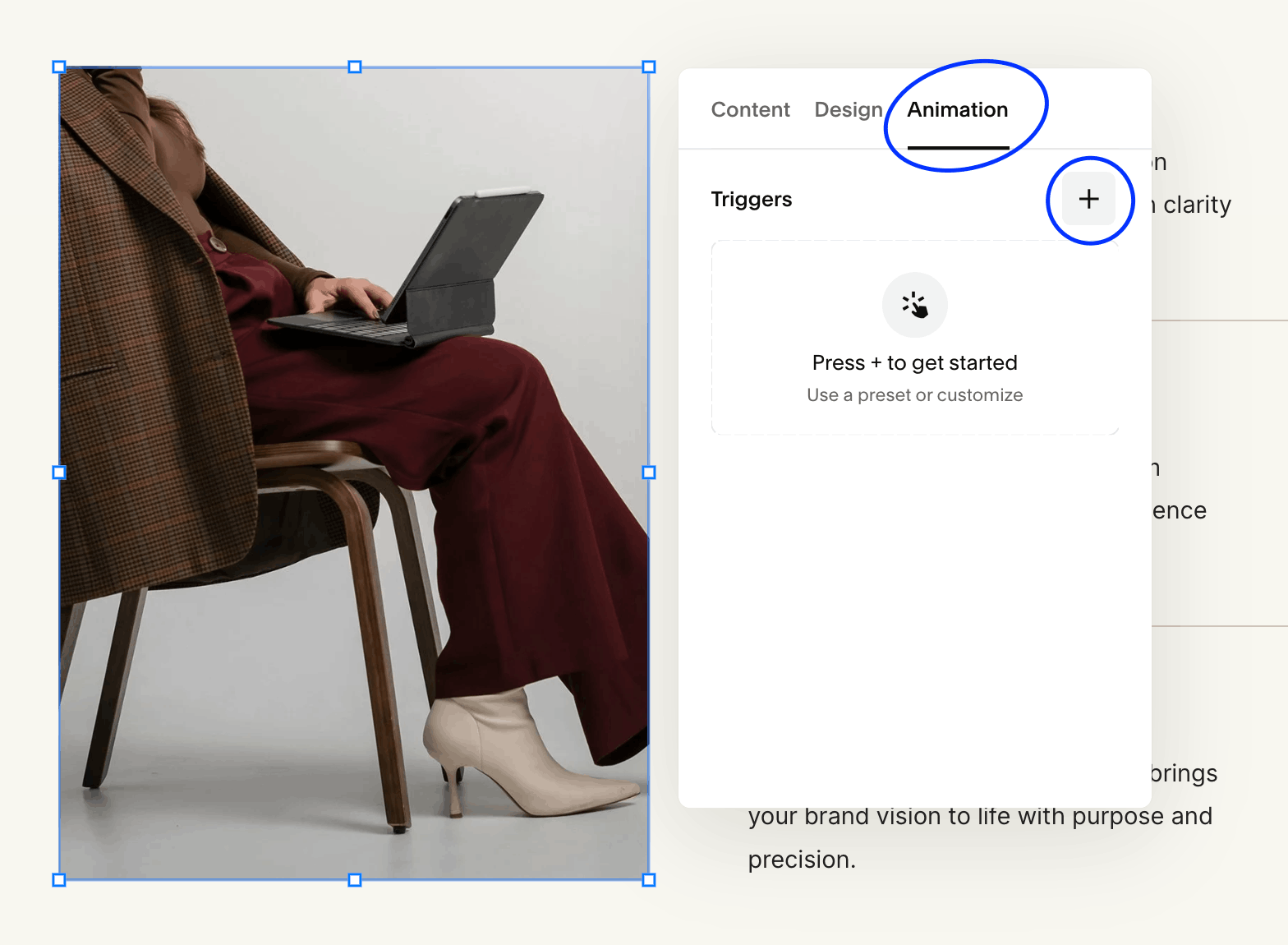
Where to find Animations
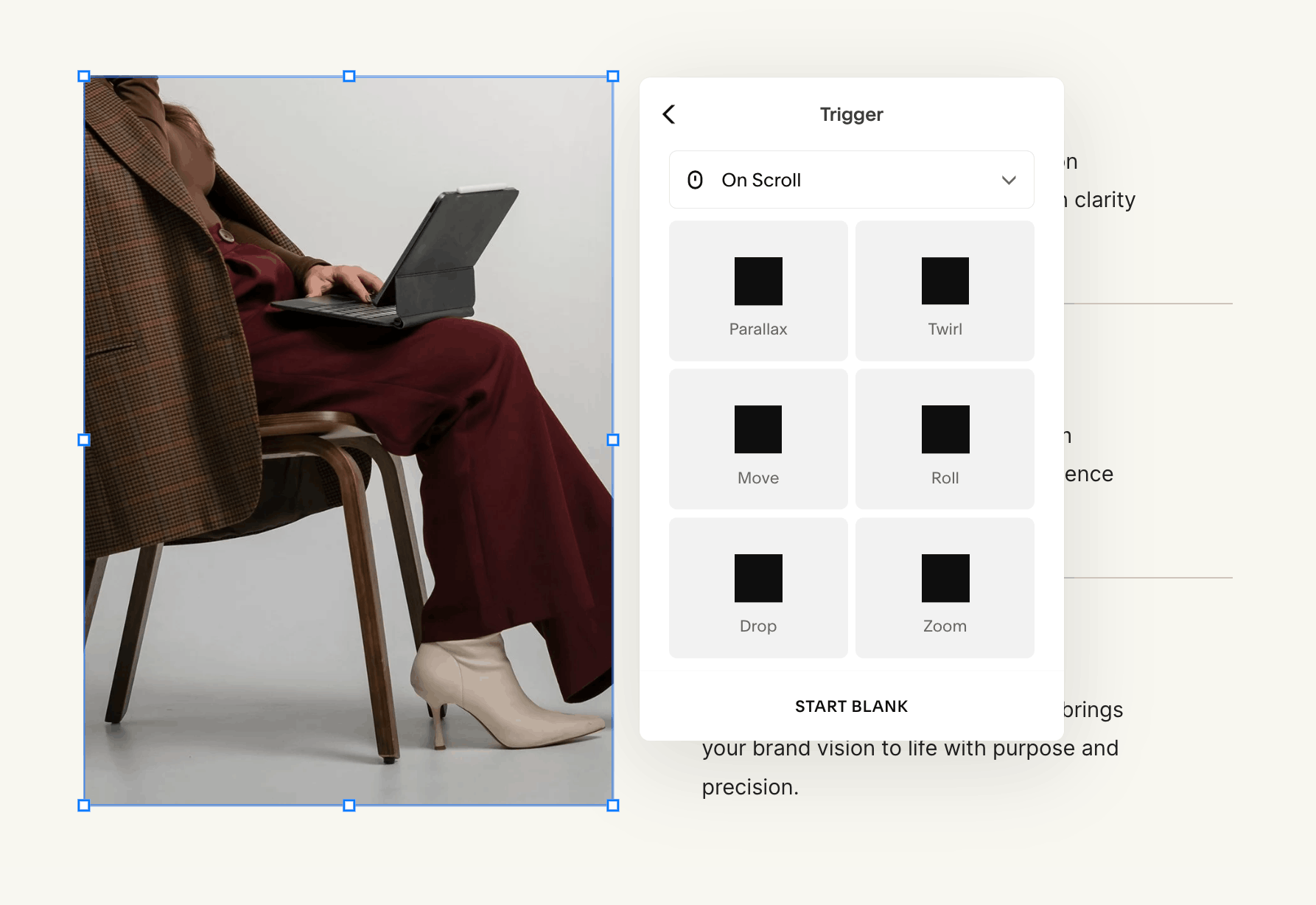
Selecting trigger & animation
A note on using animations thoughtfully
Animations are an incredible tool for making your website feel elevated and engaging, but like any design element, balance is everything. The goal is to guide your visitor's eye, not to compete for their attention on every scroll.
A good rule of thumb: choose one or two key blocks per section to animate, and let the rest of your content sit still. This gives your animated elements room to breathe and actually do their job. When everything moves, nothing stands out.
It is also worth previewing your page on mobile before publishing. Animations that feel subtle and smooth on desktop can sometimes feel heavy or distracting on a smaller screen, so always test before you go live.
And that's it, motion design made easy!
If you have been keeping your Squarespace site simple because customization felt out of reach, this is your sign to start experimenting. These tools are exactly what the platform has needed, and this is truly just the beginning of where Squarespace's animation and design capabilities are heading.
Ready to take your Squarespace site even further? Browse our premium Squarespace templates designed to work beautifully with all the latest updates!
Resonance


Save this post to Pinterest so you can come back to it whenever you need it!
Thanks for reading!
Did this tutorial help? Consider buying me a coffee as thanks! 🥰
Use discount code STYLEDSQUARE10 to save 10% off your Squarespace Subscription!
* Disclaimer: This post contains affiliate links. If you purchase through our links, we may earn a small commission at no extra cost to you. We only ever recommend tools we genuinely use and love.