Pin to save for later
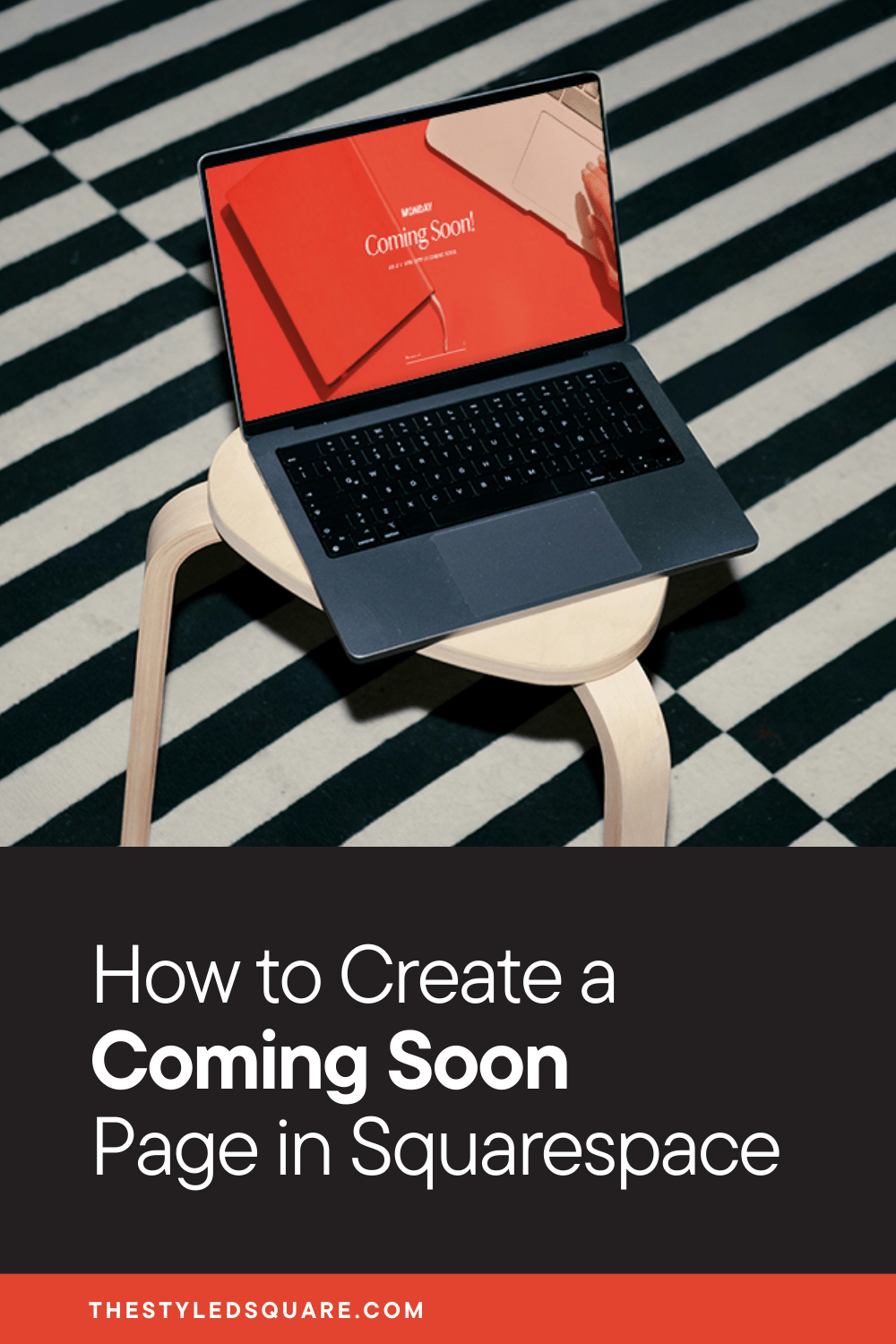
How to Create a Coming Soon Page Using the Squarespace 7.1 Lock Screen
Revamping your Squarespace website or making big updates across multiple pages can feel stressful, especially when your site is in that messy in-between stage. The last thing you want is a potential client or customer landing on half-finished pages, broken layouts, or copy that is still being rewritten.
The good news is that Squarespace 7.1 makes it easy to protect your in-progress website with a site-wide Under Construction or Coming Soon page. This ensures that every visitor lands on one clean, branded page while the rest of your website stays hidden and password-protected.
This guide will show you how to create a Coming Soon page using the Squarespace Lock Screen feature, and how to set it up step-by-step for a smooth, stress-free redesign.
To get started…
From your Squarespace dashboard, go to:
1. Pages
2. Scroll down to System Pages
3. Lock Screen
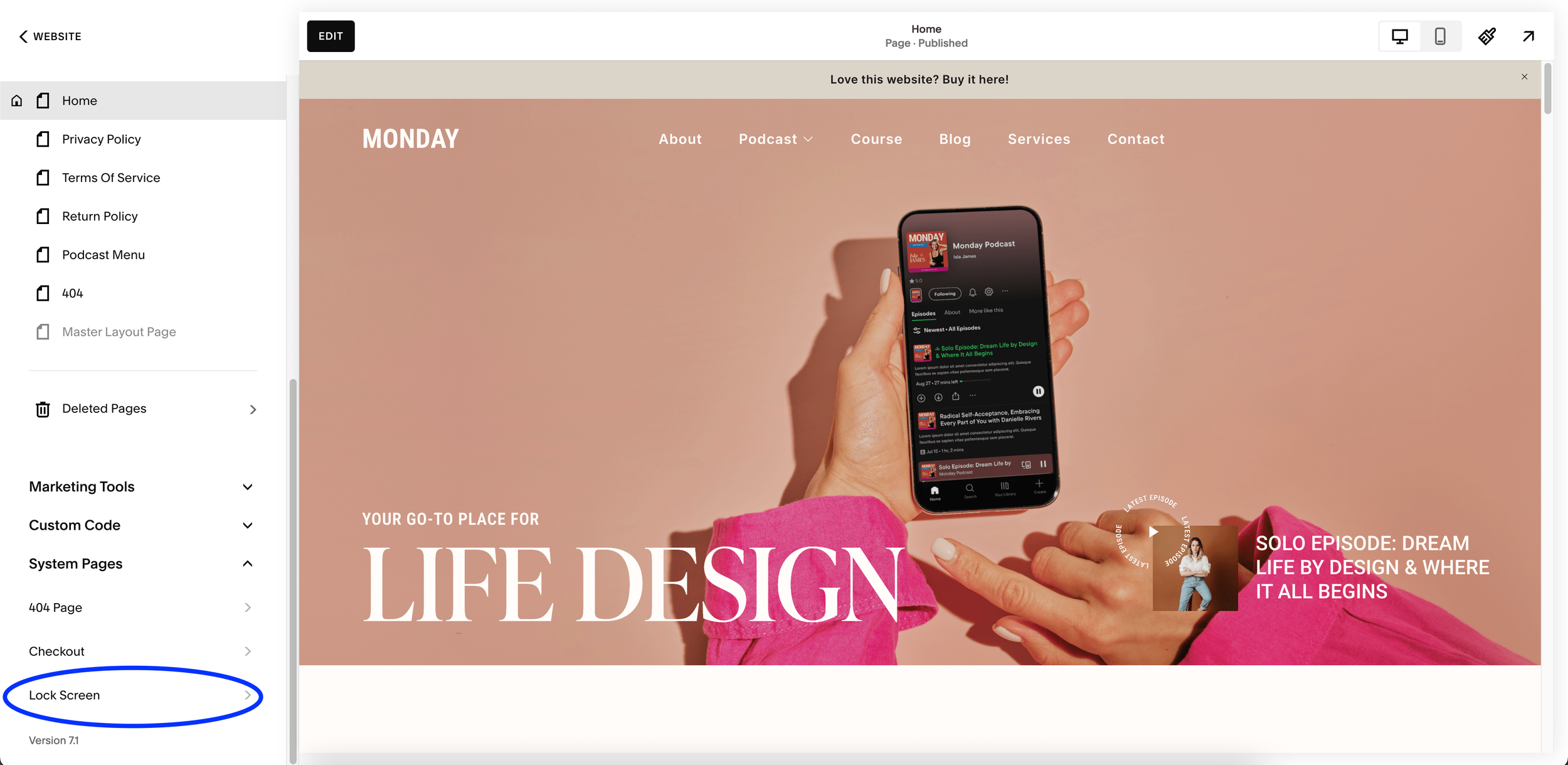
Locating Lock Screen Feature
4. Choose your Layout
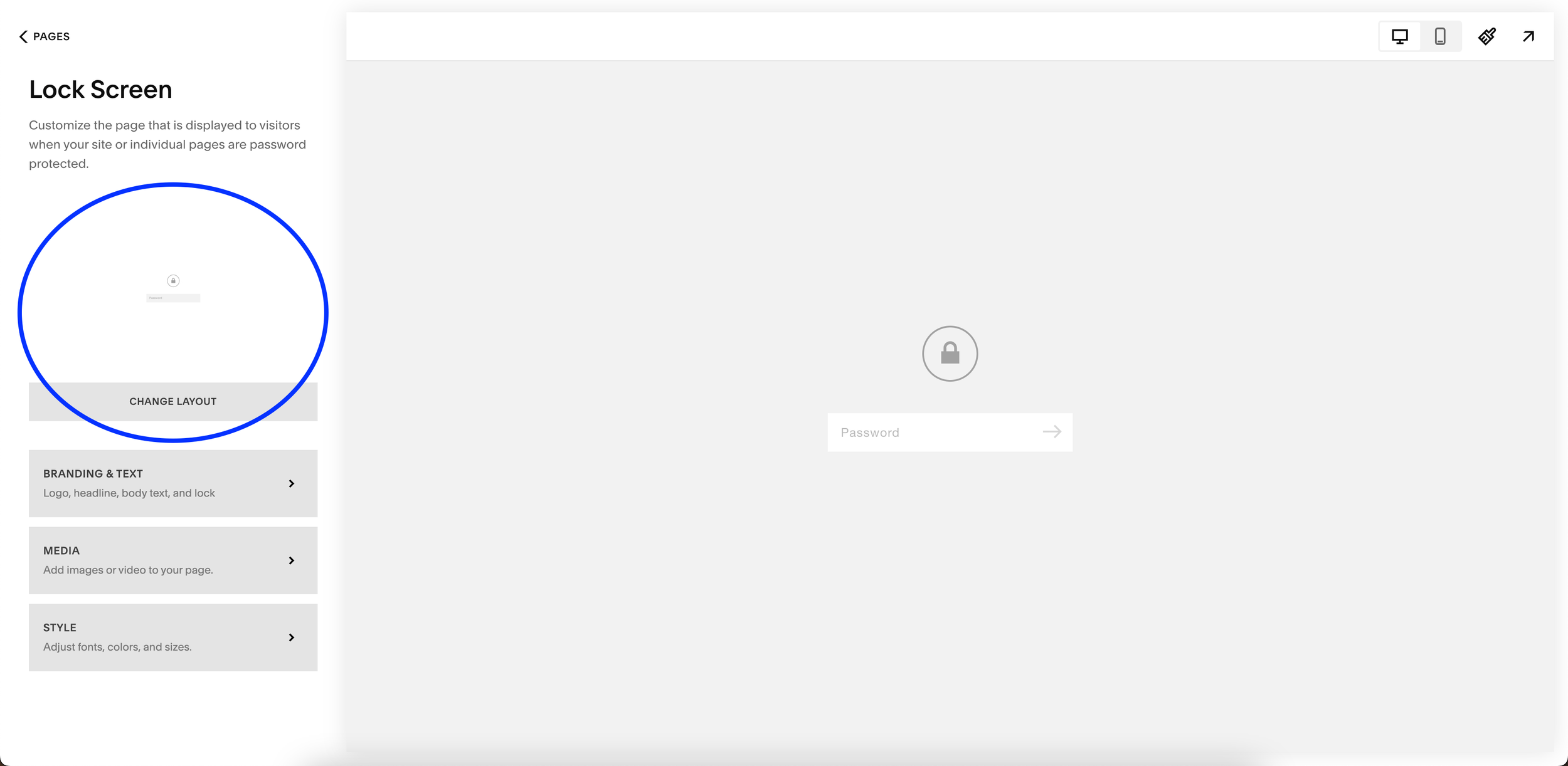
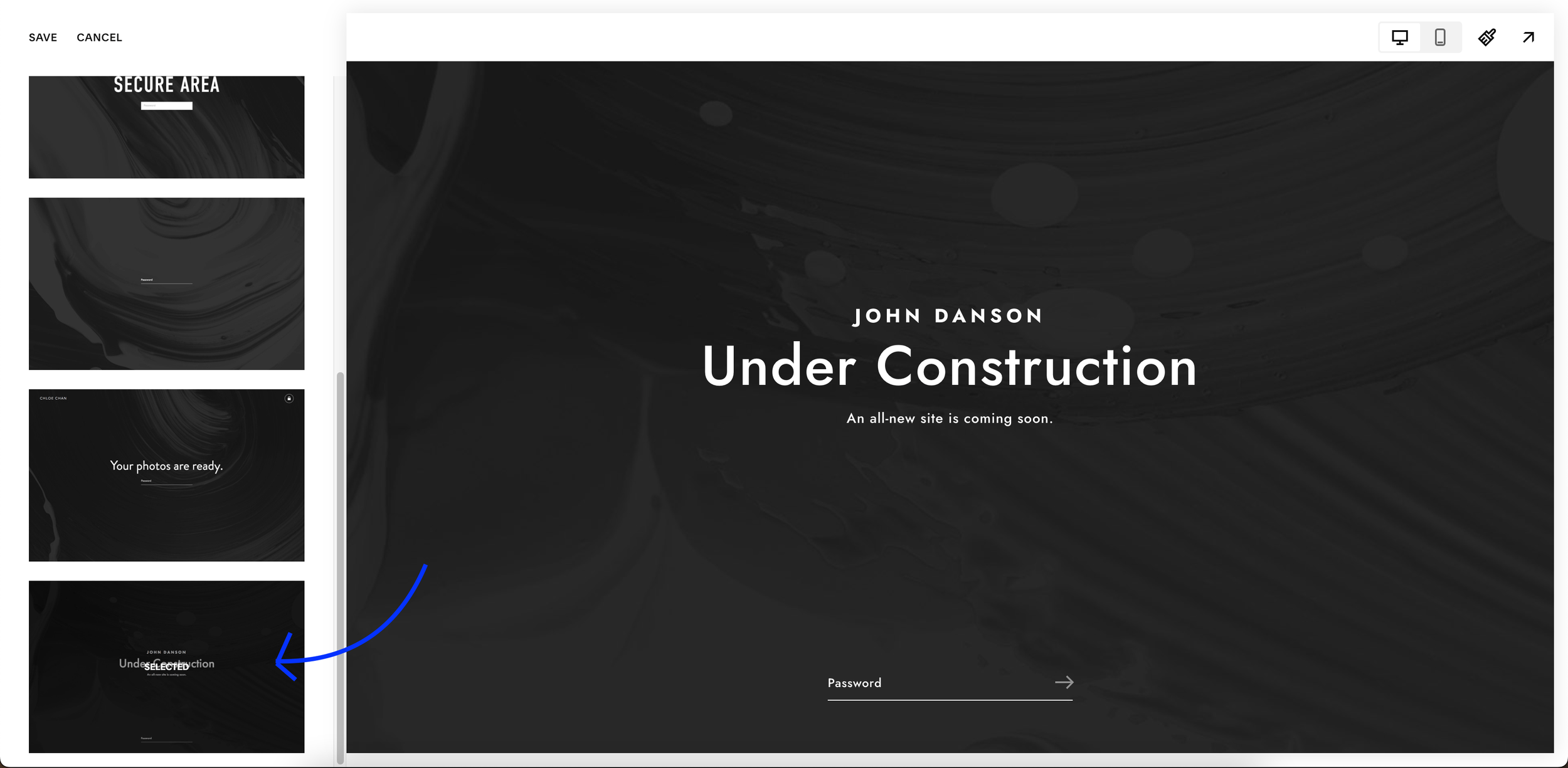
Our recommended layout for Under Construction or Coming Soon page
5. Next, go to Branding & Text
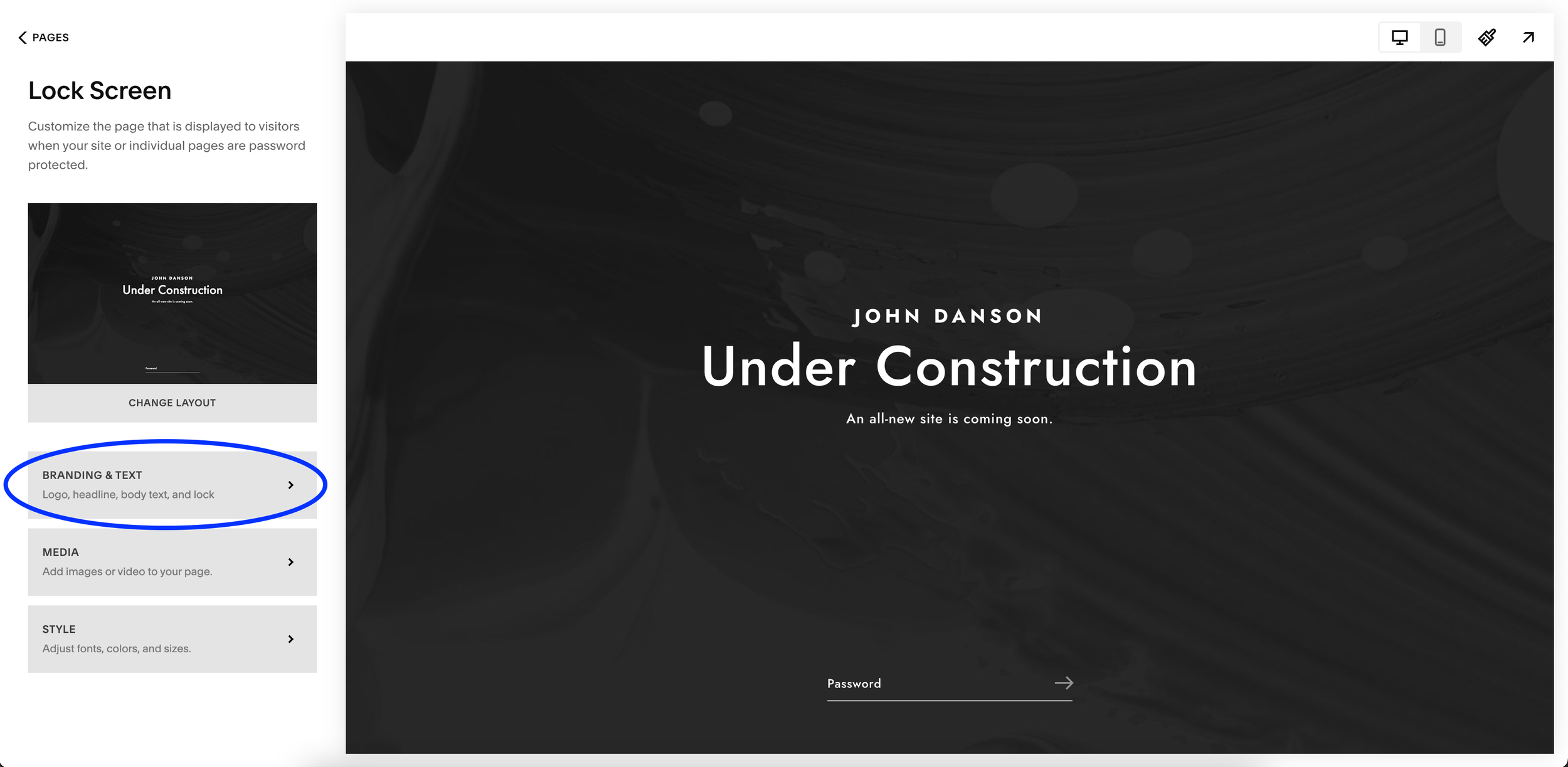
6. Update Headline & Body Text
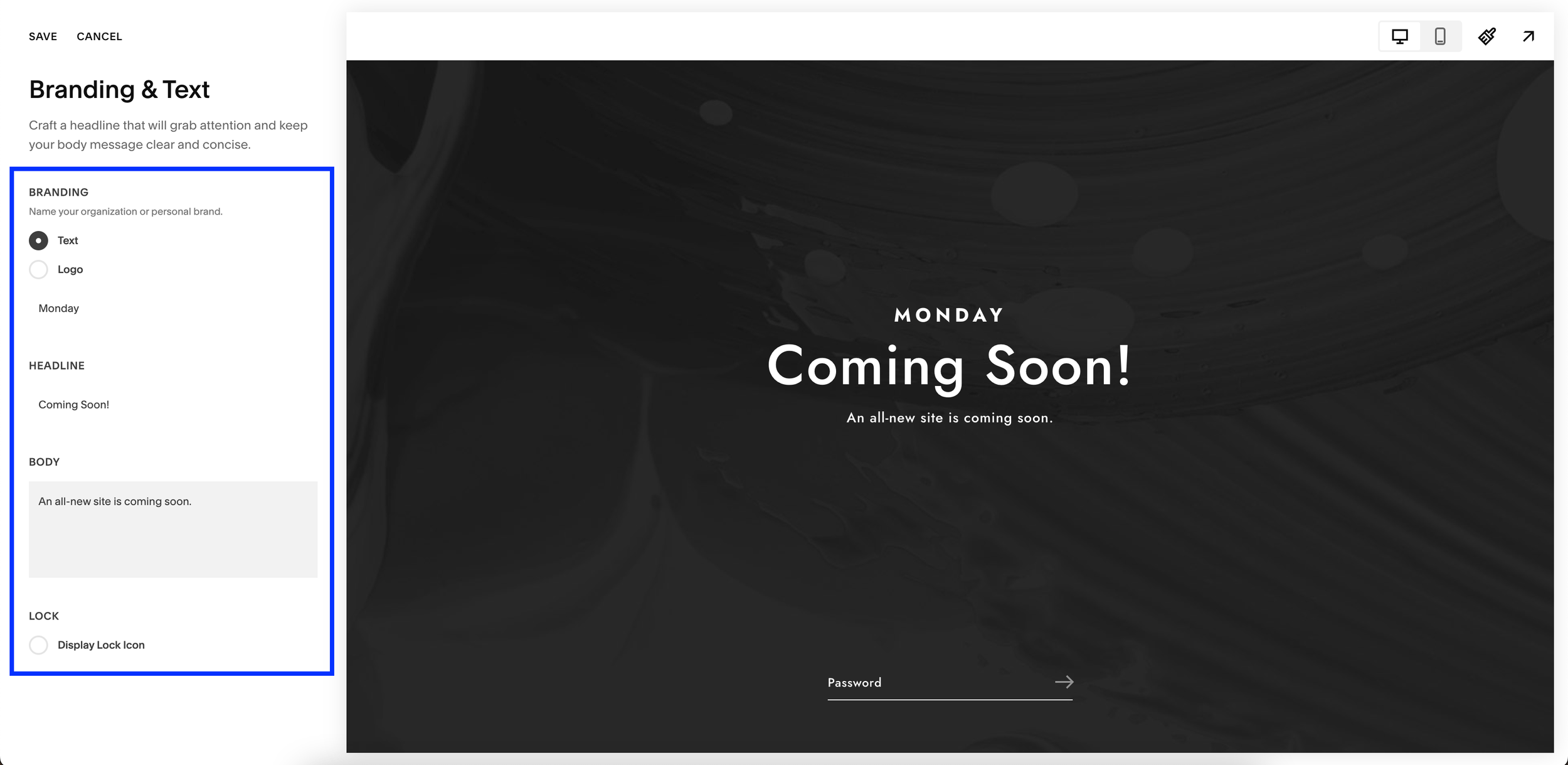
7. Next, go to Media
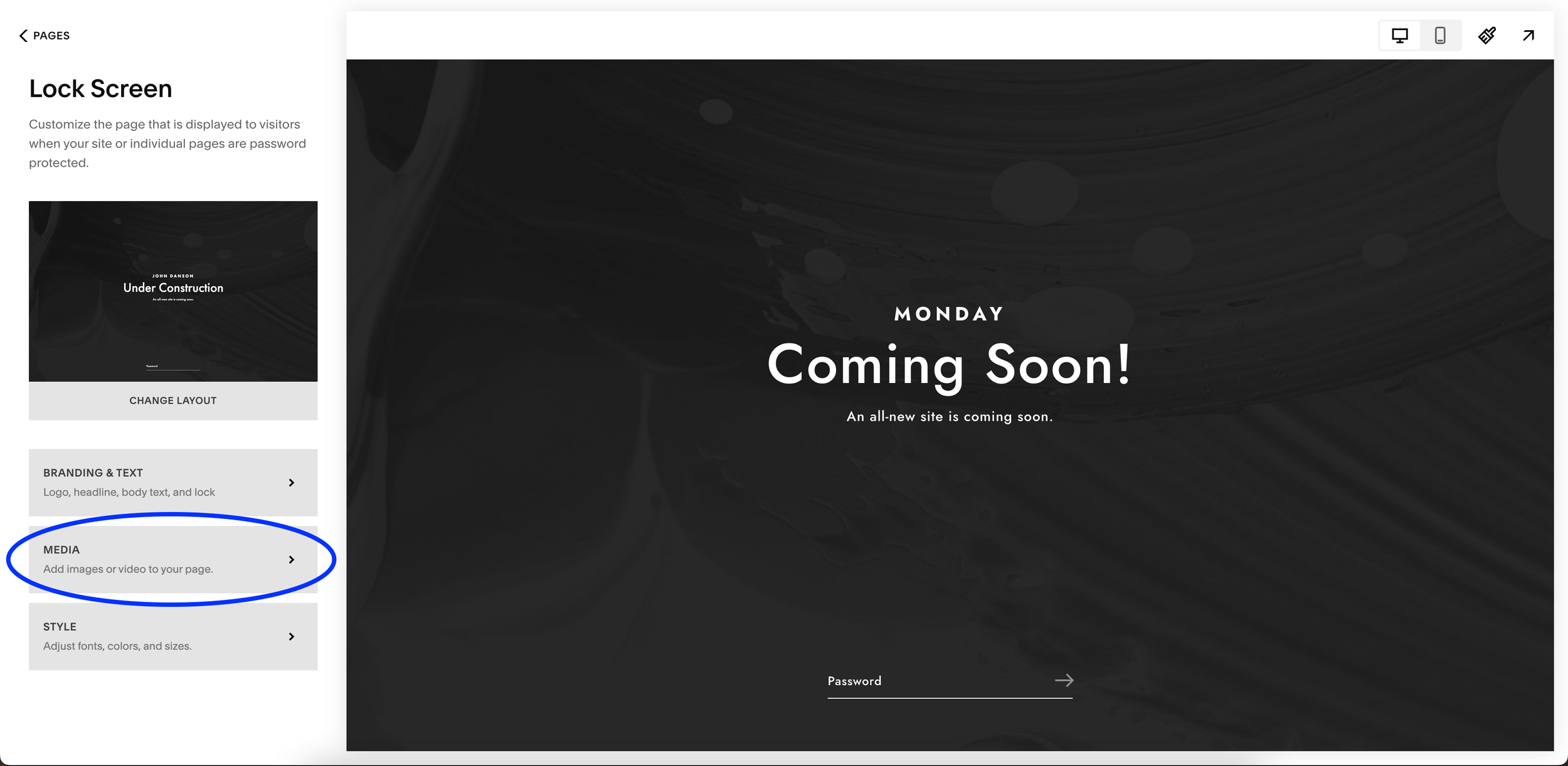
8. Upload single or multiple images
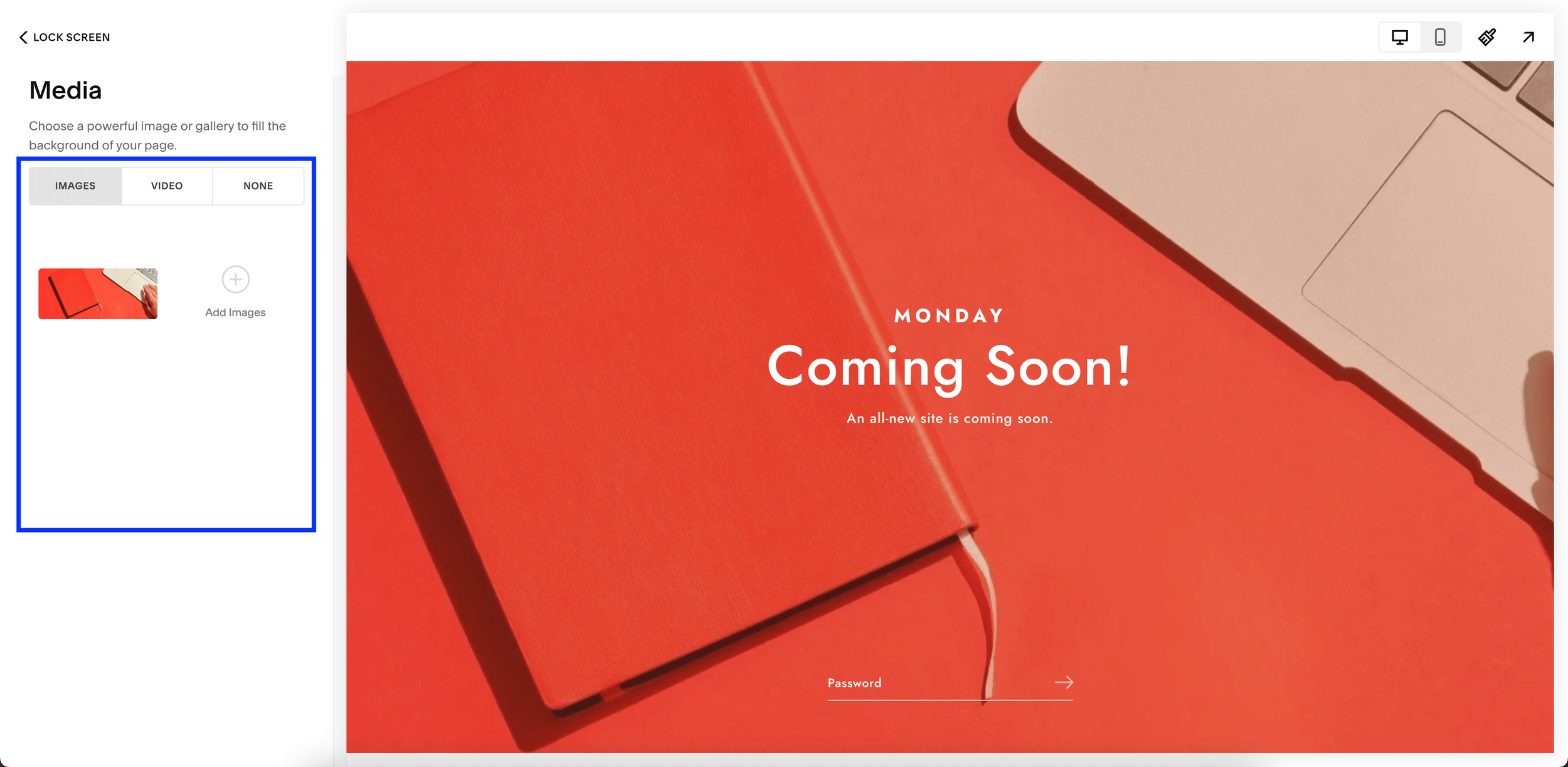
Note! Uploading multiple images will create a slideshow of rotating images
9. Next, go to Style
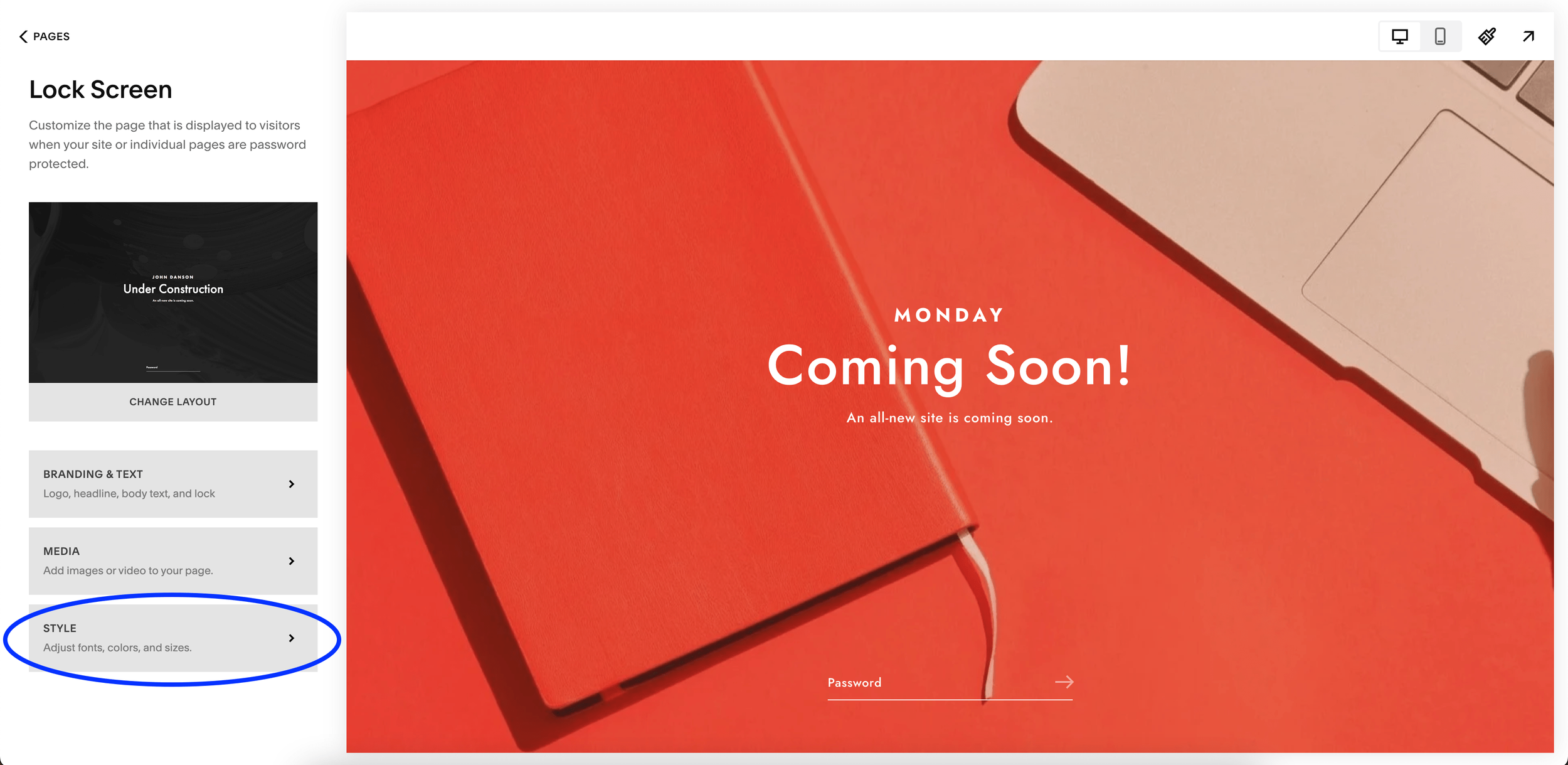
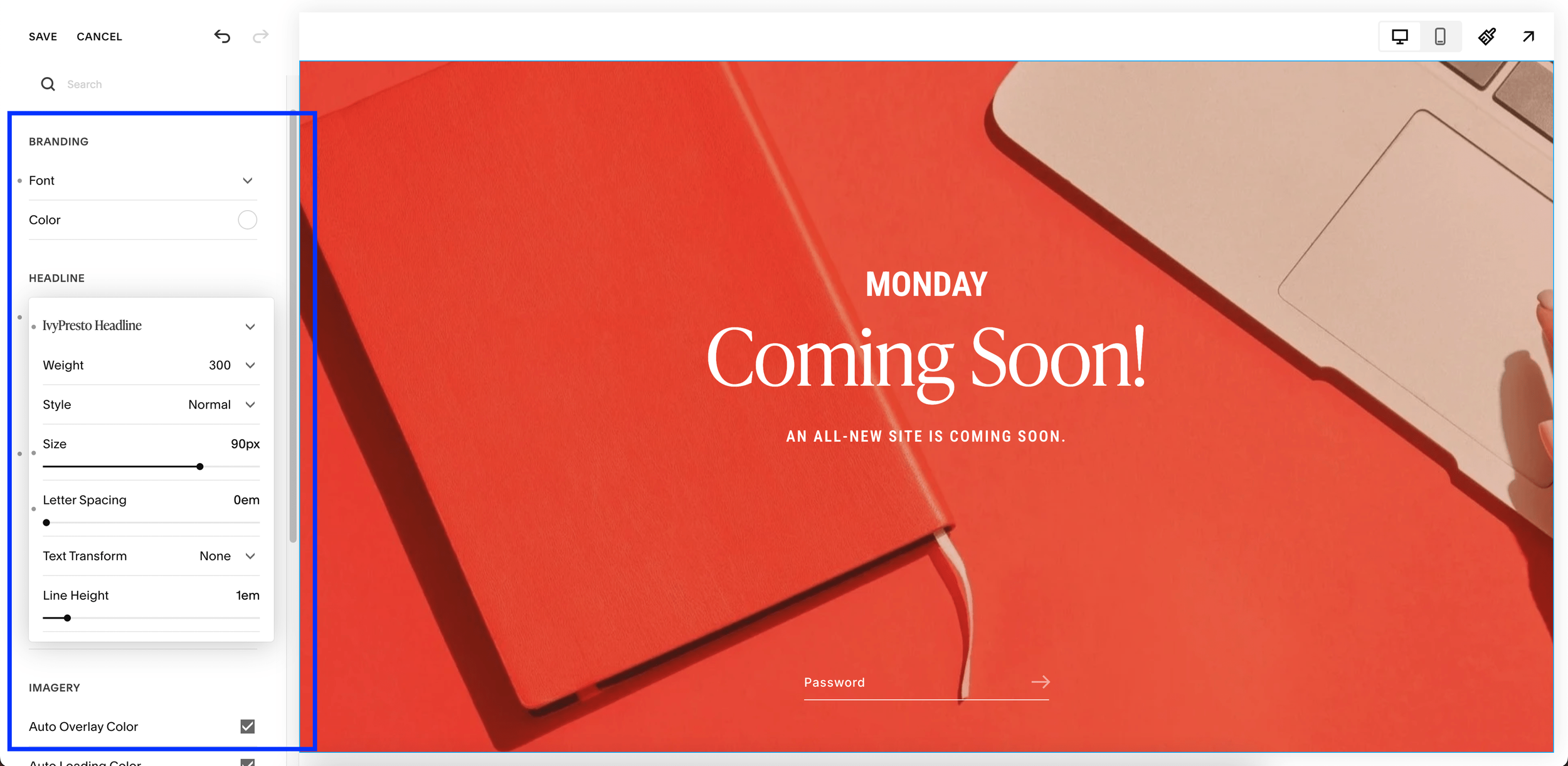
10. Update font styles for your brand
FINAL STEP!Enabling your Coming Soon page
From your Squarespace dashboard, go to:
1. Settings > Site Availability
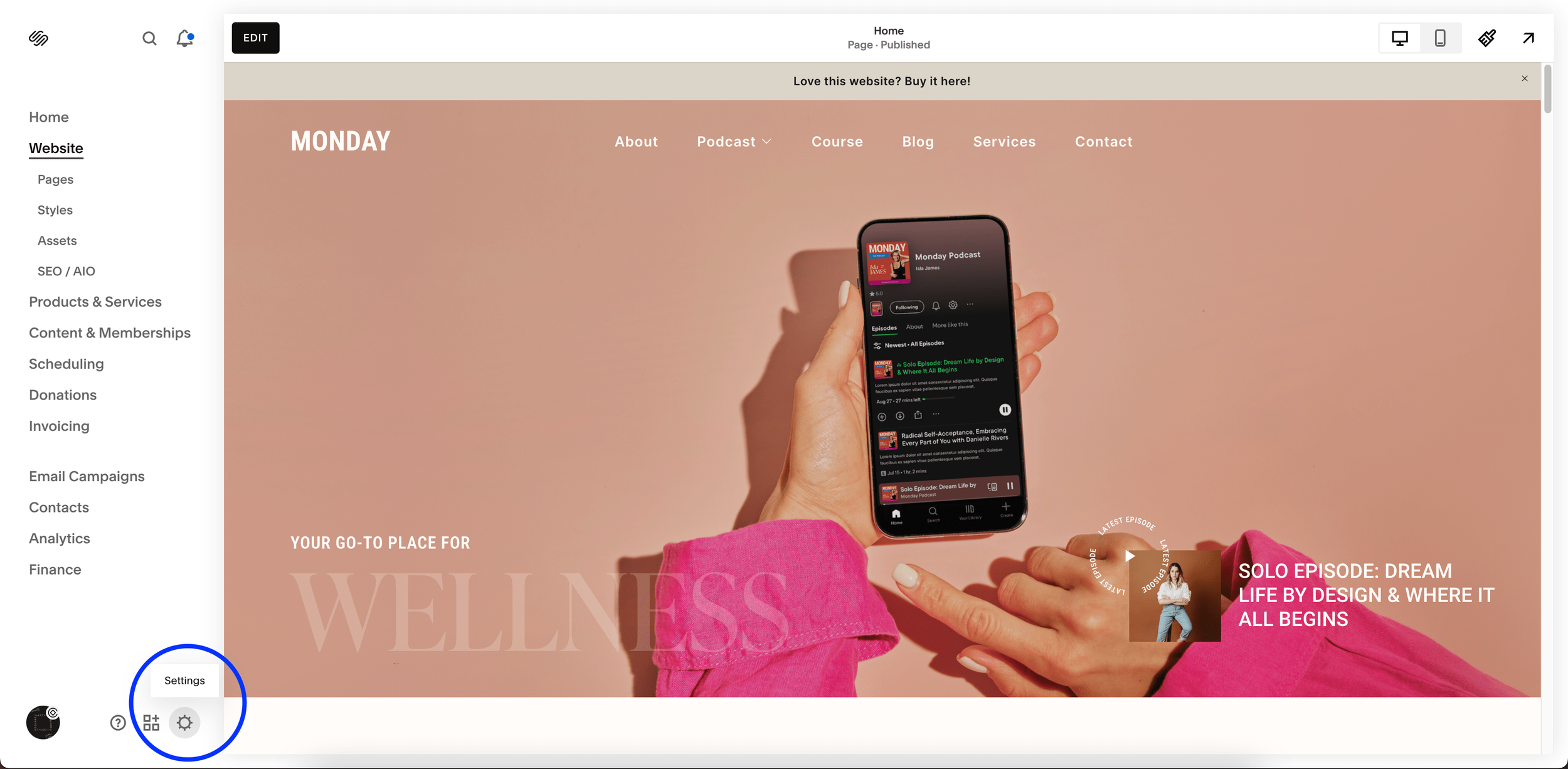
Locate Website Settings

Locate Site Availability
Set your website to Password Protected and set a unique password
Hit Save and test your live website!
Thanks for reading!
Use discount code STYLEDSQUARE10 to save 10% off your Squarespace Subscription!
* Disclaimer: This post contains affiliate links. If you purchase through our links, we may earn a small commission at no extra cost to you. We only ever recommend tools we genuinely use and love.