How to add an inline Flodesk newsletter signup form to your Squarespace website

PIN TO SAVE FOR LATER!
Today, we’re walking you through how to add an embedded inline newsletter signup form to your Squarespace website in just a few easy steps.
Why we love Flodesk (& 25% off!)
Flodesk is an intuitive email marketing platform with beautiful pre-made templates that allow you to create and send emails in minutes. It’s by far the simplest email marketing platform we have ever used — and we recommend it to all out clients looking for a new provider.
You can try out Flodesk free for a month with their free trial. If you want to continue with the platform, we have an affiliate link that will save you 25% off your monthly subscription for the first year.
Use our code STYLEDSQUARE to get 30 days free AND 25% off your first year of Flodesk!
Note: you will need a Business Plan or higher to add a Flodesk embedded form
Step 1:
Log in to your Flodesk account & click on “Forms” in the top navigation

Step 2:
Click “New Form” button to create a new form

Step 3:
Click on “Inline” under the form types & choose style of choice

Step 4:
Choose a segment or create a new segment
An email segment is the division of email subscribers into targeted groups.
Eg. general list, newsletter, freebie, etc.

Step 5:
Customize form with personalized content & brand styles.

Step 6:
When the design of the form is complete click “Next”

Step 7:
Choose your preference of settings in the “Customize” tab

Step 8:
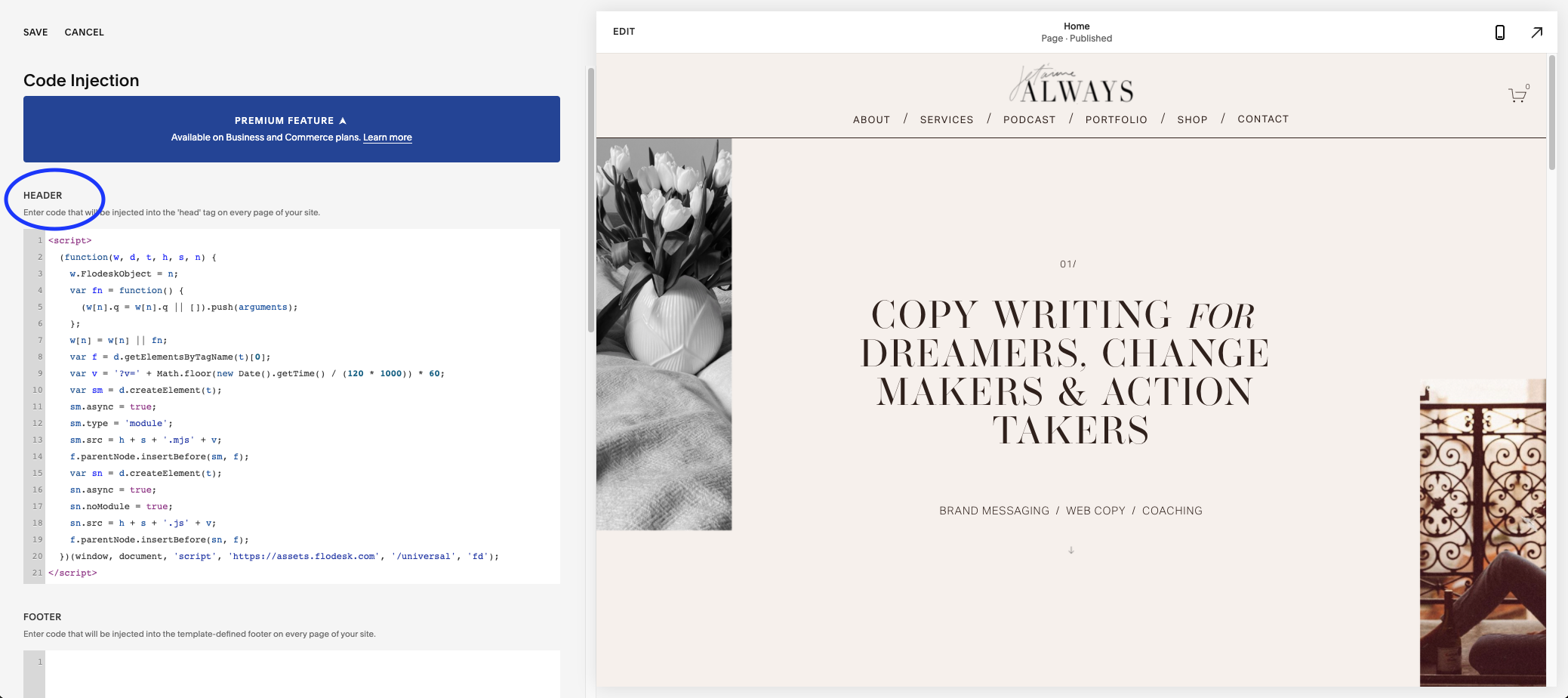
In “embed” tab, click copy “Header Code”

Step 9:
In your Squarespace website, go to:
Settings > Advanced > Code Injection > Paste Under “Header” > Click “Save”
Note: you will need a Core Plan or higher to add a Flodesk embedded form
Step 10:
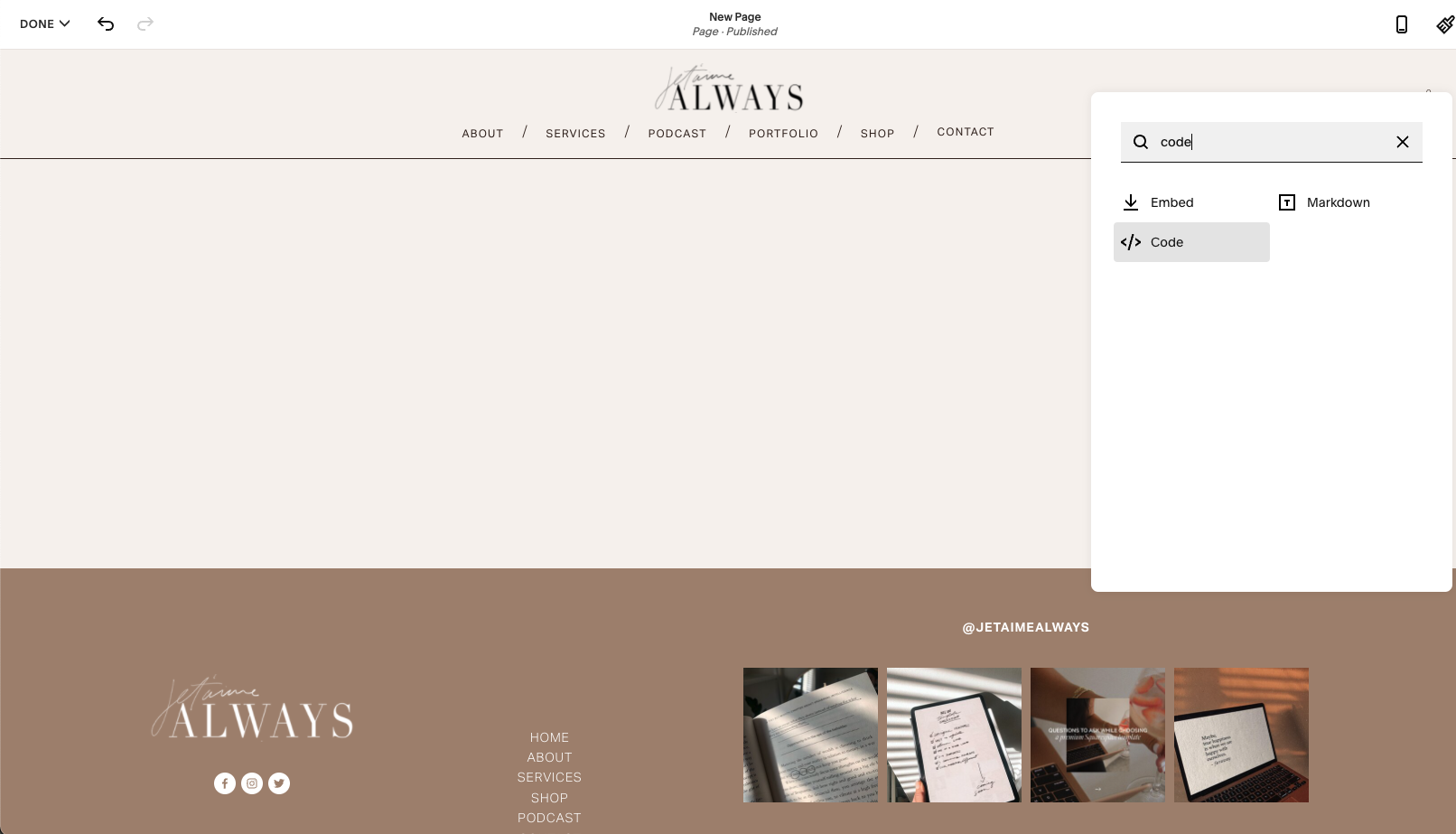
In your Squarespace website, navigate to the page you’d like to add your inline embedded form.
Paste the text in your code block
Step 11:
Navigate to Flodesk & copy “Inline Code”
Add a code block element to your page


Refresh your browser. You should now see your embedded form!
Note: make sure to test form thoroughly to make sure everything is working smoothly.

WEBSITE TEMPLATE SHOWCASED: PARISIAN
Thanks for reading!
Did this tutorial help? Consider buying me a coffee as thanks! 🥰
Use discount code STYLEDSQUARE10 to save 10% off your Squarespace Subscription!
* Disclaimer: This post contains affiliate links. If you purchase through our links, we may earn a small commission at no extra cost to you. We only ever recommend tools we genuinely use and love.
More tutorials