How to create smooth scroll anchor links in Squarespace 7.0 & 7.1
PIN TO SAVE FOR LATER!
What are anchor links?
Anchor links are hyperlinks that allow visitors to jump from one location of a website page to another with a single click. Anchor links are a user-friendly way of navigating your visitors through text-heavy pages or to showcase your most important content. They create a seamless website user experience, all while giving your website an extra touch to attention to detail.
In this tutorial, we’ll walk through the quick and easy steps to add anchor links to a Squarespace 7.0 or 7.1.

ANCHOR LINK EXAMPLE
Squarespace 7.1
1. In Edit Mode, go to the section you would like your visitors to navigate to via hyperlink
2. Click Edit Section in the top right corner of the section

3. Locate Anchor Link and add a unique anchor link label

4. Click Copy Link

5. Add a text block & anchor link title
6. Select text & add a link
7. Paste link
8. Save!

Add smooth scroll
Go to Custom CSS (Website > Website Tools > Custom CSS)
Copy and paste the CSS below
Click “Save”
// SMOOTH SCROLL

html {
scroll-behavior: smooth;
}
Squarespace 7.0
Step 1:
Create a anchor tag with a code block
In Edit Mode, go to the section you would like your visitors to navigate to via hyperlink
Add a Code Block at the top of the section
Copy and paste the code below
Rename “anchorlink” to your preference — ex. “about”
<a name="anchorlink"></a>
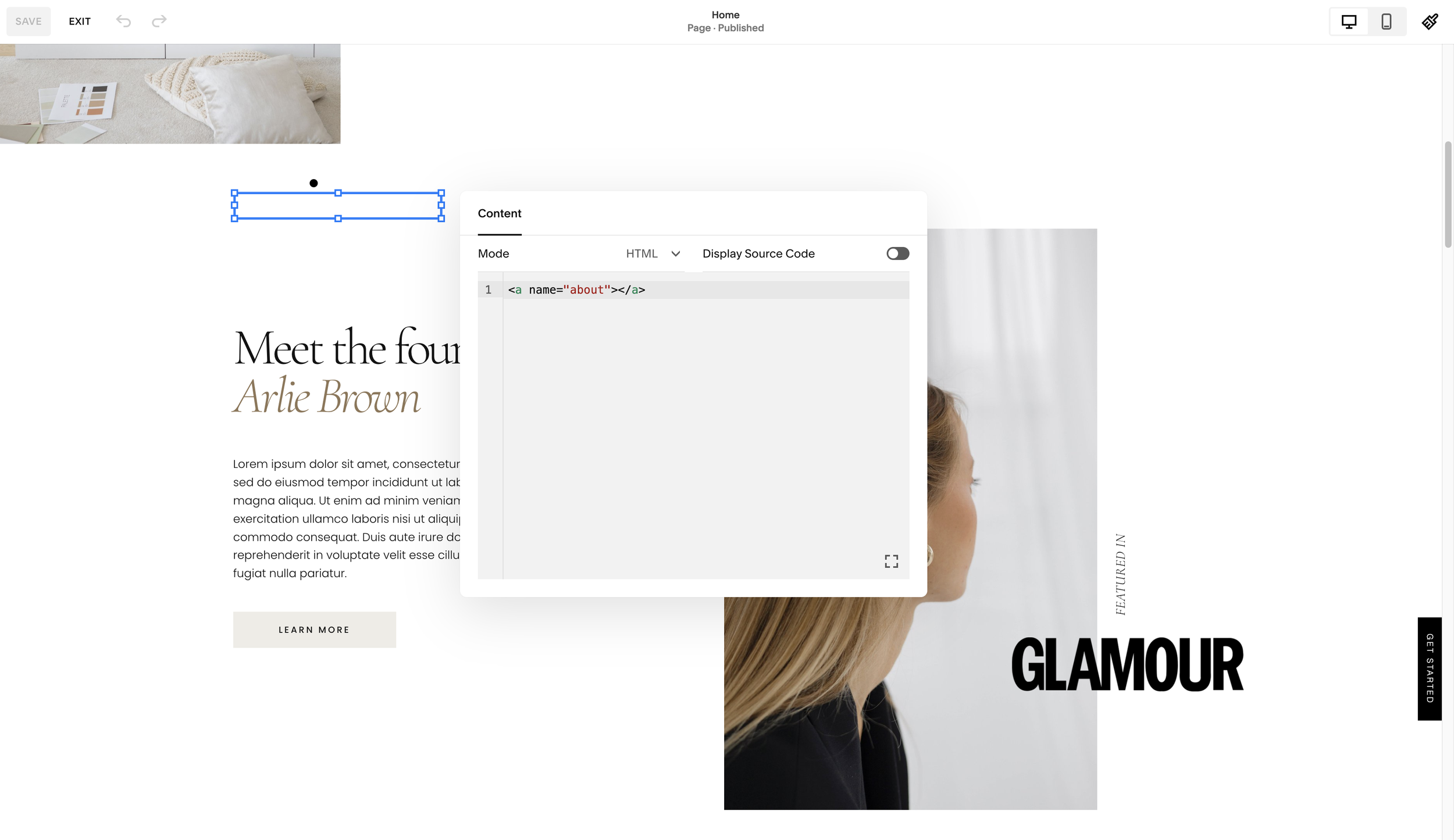
EXAMPLE
Step 2:
Add a hyperlink to the page
Add a text block, button or image in desired location
To set the destination of the anchor link, use a # followed by the word used to replace “anchorlink”
EXAMPLE: #anchorlink or #about
For text links: make sure to click “Apply”

HYPERLINK EXAMPLE
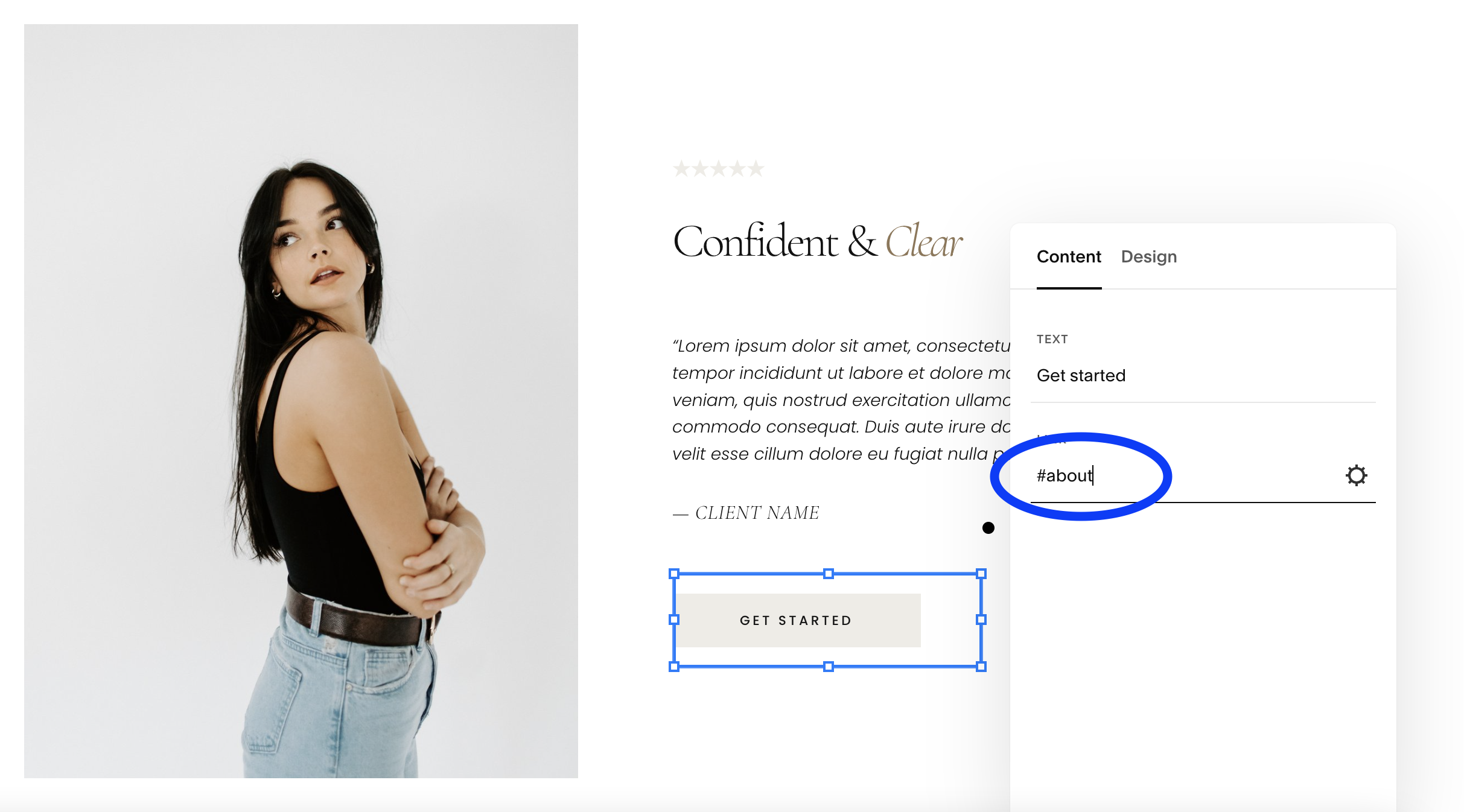
BUTTON EXAMPLE
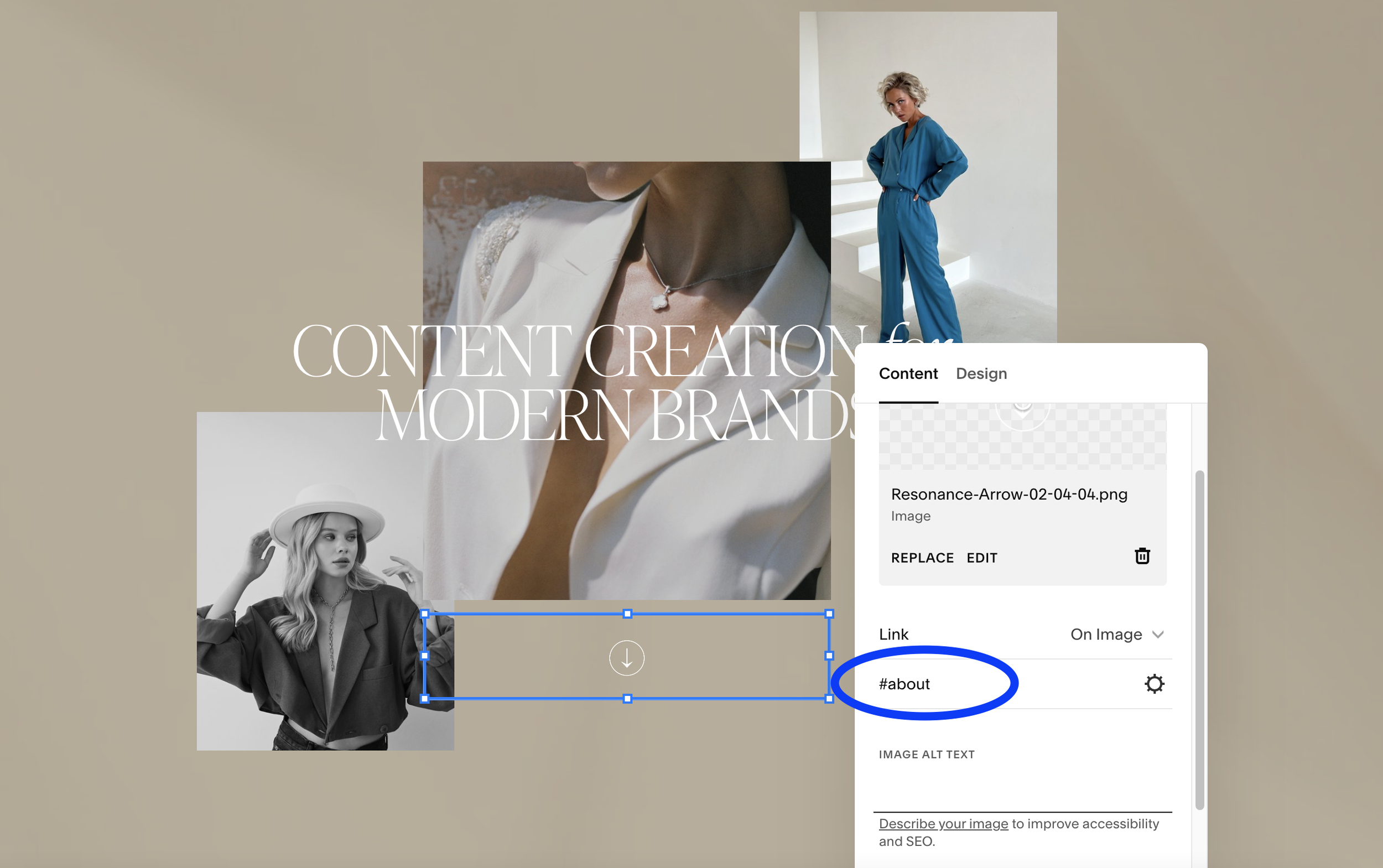
BUTTON EXAMPLE
Step 3:
Add smooth scroll
Go to Custom CSS (Website > Website Tools > Custom CSS)
Copy and paste the CSS below
Click “Save”
// SMOOTH SCROLL

html {
scroll-behavior: smooth;
}
Thanks for reading!
Did this tutorial help? Consider buying me a coffee as thanks! 🥰
Use discount code STYLEDSQUARE10 to save 10% off your Squarespace Subscription!
* Disclaimer: This post contains affiliate links. If you purchase through our links, we may earn a small commission at no extra cost to you. We only ever recommend tools we genuinely use and love.
More Squarespace tutorials