How to remove website overflow/horizontal scroll with CSS (Squarespace 7.0 & 7.1)

PIN TO SAVE FOR LATER!
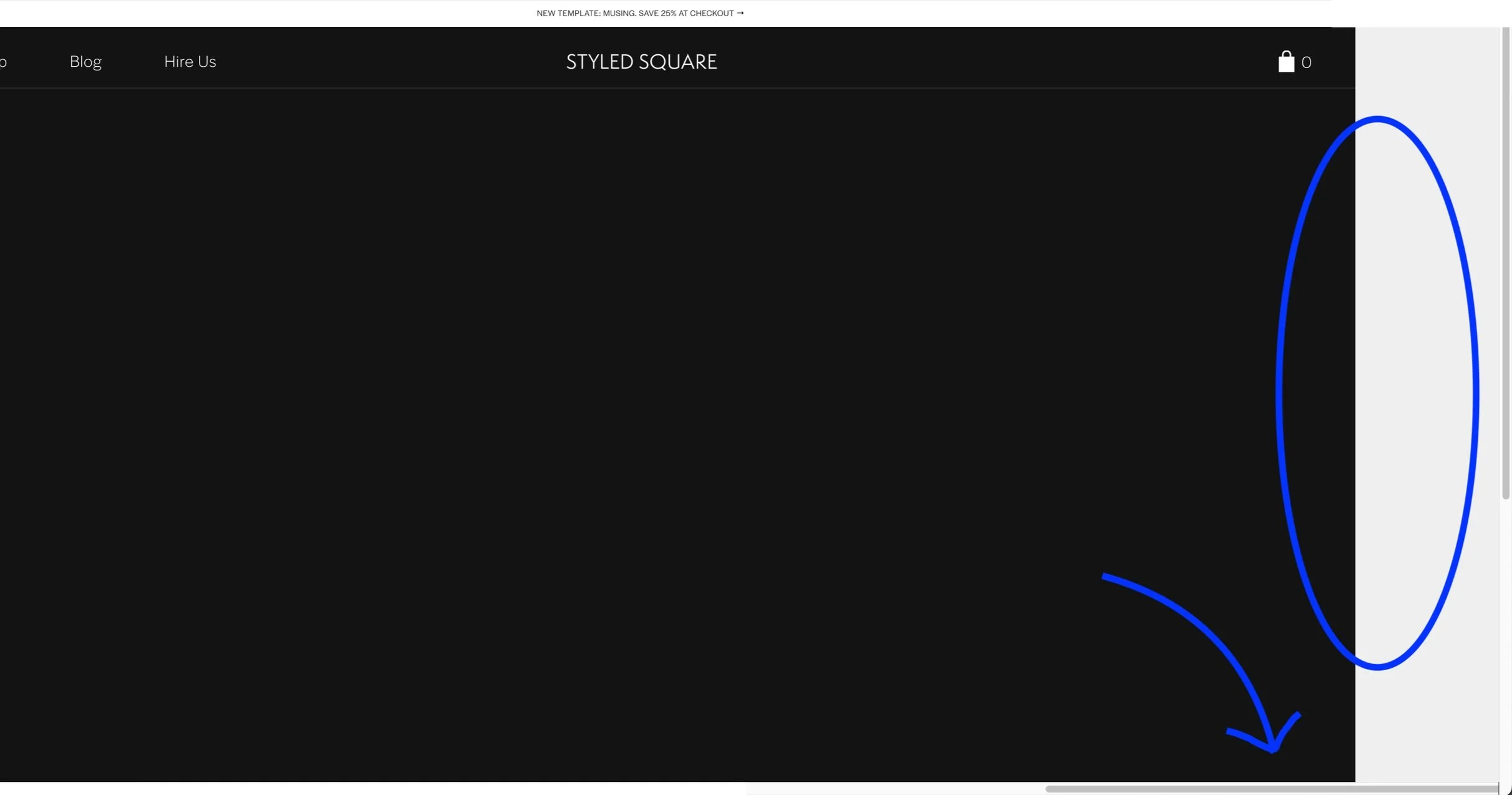
Have you noticed a frustrating horizontal scroll bar on your Squarespace website?
This is called overflow.
…and while this may not be our most exciting Squarespace tutorial — it’s an important one.
Website overflow is often caused by code snippets implemented in your website that extend the page width, and as a result, causes a horizontal scroll. In this tutorial, we share a quick and easy solution to remove overflow on desktop, tablet and mobile.
Note: if you have purchased a premium Squarespace template from us, this CSS will already be implemented in your website.
Example of overflow/horizontal scroll:
How to fix horizontal scroll on your Squarespace website
From your Squarespace dashboard, go to:
Website > Scroll down to Website Tools > Custom CSS & copy/paste the CSS below
// PREVENT OVERFLOW

body {
 overflow-x:hidden;
 overflow-y:visible;
}

@media screen and (max-width:640px) {
 #siteWrapper {
  overflow-x:hidden;
  overflow-y:visible;
 }

}

@media screen and (max-width:640px) {
html, body {
	overflow-x: hidden;
  }}
Don’t forget to save!
Thanks for reading!
Did this tutorial help? Consider buying me a coffee as thanks! 🥰
Use discount code STYLEDSQUARE10 to save 10% off your Squarespace Subscription!
* Disclaimer: This post contains affiliate links. If you purchase through our links, we may earn a small commission at no extra cost to you. We only ever recommend tools we genuinely use and love.
More Squarespace tutorials